

If you spend your evenings copying information from one app to another — an email into a spreadsheet, a form answer into a task list, a file into a folder — you are doing work a simple automation could do for you. The good news is that your first automation does not need coding, a new job title, or a whole weekend. It needs one clear task, one trigger, and one action.
Pick one repetitive, low-risk task you already do every week. Write it as one sentence: When this happens, then do that. Build that single workflow, test it with a sample, check the result in the destination, and only then turn it on. That is the whole method. Everything else in this guide helps you pick the right task, choose a tool without overthinking, and avoid the mistakes that make beginners quit.
What an automation really is
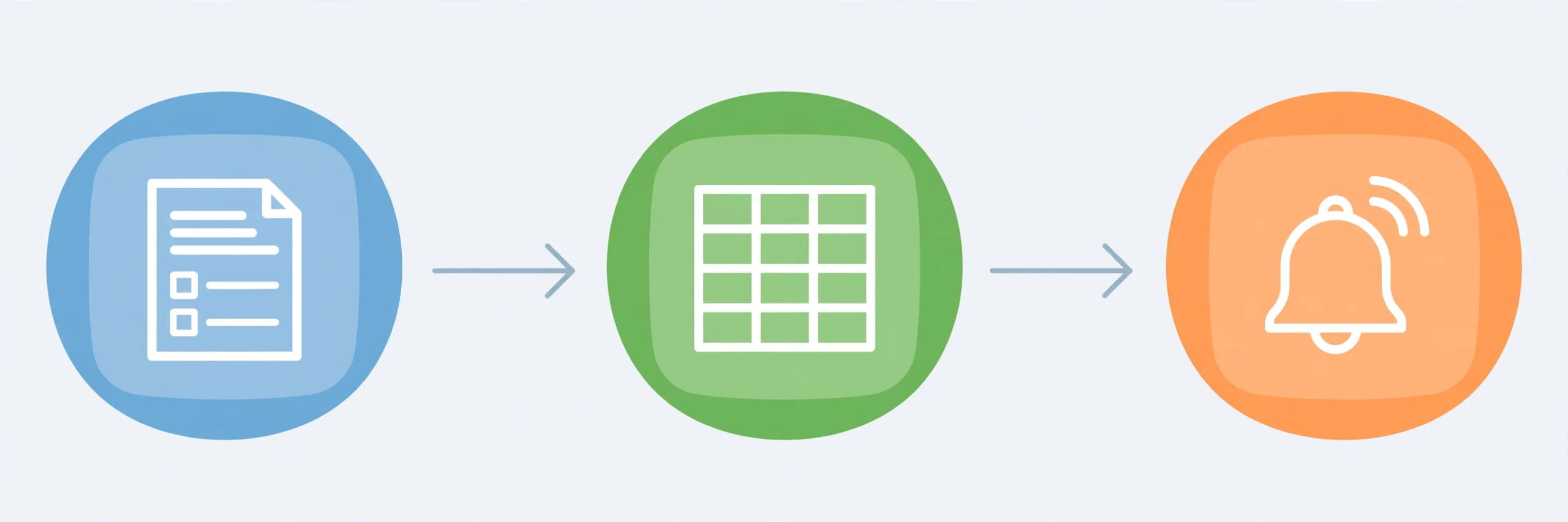
An automation is a small system that watches for an event and then does something for you. Most beginner workflows have three parts. A trigger starts the workflow, for example a new form response, a new email, or a new row in a spreadsheet. A condition is an optional filter, for example only continue if the message contains a certain word. An action is what happens next, for example add a row, save a file, create a task, or send a notification.
Traditional automation follows fixed rules about structure: if this field is filled, do that. AI can add a different kind of step: it can read meaning, for example summarise a long email, classify a message, or turn rough notes into a draft. That is useful, but it also means AI output needs a human check before it reaches customers or makes an important decision. Start with rule-based steps, then add one AI step only where a summary or draft genuinely helps.
Pick the right first task
Do not start with your biggest, messiest process. Start with something boring, repeated, and easy to check.
A good first task is repeated at least weekly, has a clear input and a clear output, is low risk if it runs twice or fails once, and takes you a few minutes every time. Examples that fit this test include: when a form is submitted, add the answers to a spreadsheet; when an email with an attachment arrives, save the attachment to a folder; when a new lead message arrives, create a task so it is not lost; when you save an article, add it to a reading list.
Avoid these for your first automation: anything involving money, refunds, or deleting data; anything that sends messages to customers without review; and anything with many exceptions and special cases. Those are not bad automations. They are just bad first automations.
Write your chosen task in one sentence before you open any tool. For example: When a new contact form response arrives, then add a row to my leads spreadsheet and send me a notification. If you cannot write it in one sentence, the task is still too big. Split it.
Choose a tool without overthinking
You do not need the best tool. You need a tool that connects the two apps you already use and lets you test for free.
IFTTT is a good starting point for simple, single-step personal automations and has pre-built applets you can start from. See the IFTTT guide to automating with AI for an introduction. Zapier is well suited to multi-step business workflows and conditional paths. Make uses a visual canvas that makes it easier to see how data moves from one step to the next. n8n gives more control and can be self-hosted, but it is better as a second step once you are comfortable. Microsoft Power Automate is a natural fit if you already work mainly in Microsoft 365.
Do not compare every feature. Ask three questions: Does it connect my two apps? Can I understand its builder in ten minutes? Can I test it on a free tier? If the answer to all three is yes, start there. Check the current free-tier limits on the tool’s official site before you build anything that will run hundreds of times a month, because limits change.
Build it step by step in one evening
Use this evening plan as a guide, not a race. Spend about 15 minutes picking and writing your one-sentence task. Spend about 45 minutes building it. Spend the rest of the evening testing it and watching it run once for real.
Step 1: Connect your apps. Sign in to your chosen automation tool and connect the two apps in your sentence, for example your form tool and your spreadsheet. You will usually authorise each app once.
Step 2: Set the trigger. Choose the event that starts the workflow, for example New form response. Run a test or use a sample response so the tool can see what the data looks like.
Step 3: Map the fields. In the action step, match each incoming field to the right destination column, for example name to Name, email to Email, and message to Message. This mapping is where most beginner errors happen, so check it slowly.
Step 4: Add one filter only if you need it. For example, only continue if the form field for budget is not empty. Skip filters on your first build if you can.
Step 5: Add a notification for yourself. A simple notification to yourself, not to a customer, helps you confirm the workflow ran.
Step 6: Test with a sample, then with a real entry. Submit a test form yourself. Check that the row appears in the spreadsheet with the right values and that your notification arrived. Fix the mapping if anything is in the wrong column.
Step 7: Turn it on and watch it for a week. Keep doing the old manual check for a few days. If the automation works, you can stop the manual check. If it fails, turn it off, look at the run history or log in the tool, and fix one thing at a time.
A worked example you can copy in structure, not in detail
Suppose your sentence is: When a new contact form response arrives, then add a row to my leads spreadsheet and send me a notification.
Your trigger is the new form response. Your first action adds a row, with the form’s name, email, and message mapped to matching columns. Your second action sends you a short notification with the person’s name and email so you know to follow up. That is one trigger and two actions, which is the shape of most useful beginner automations. Once this works, you can later add a third step, for example creating a task, but do not add it on day one.
Add AI carefully, not everywhere
AI is most helpful in an automation when it turns messy input into a usable draft. For example, it can summarise a long enquiry into three bullet points, classify a message as a question, a complaint, or a sales enquiry, or turn rough meeting notes into a task list.
Keep two rules. First, let AI draft, not decide: review AI summaries and drafts before they go to anyone else. Second, do not put sensitive personal, financial, or health information into an AI tool unless you have checked that tool’s privacy terms and you are comfortable with how it handles that data. If a step involves an important decision, keep a human in the loop.
7 mistakes beginners make
- Automating a messy process. If the manual process is unclear, automation will only repeat the confusion faster. Simplify the process first.
- Building too much at once. A ten-step workflow is ten places to fail. Start with one trigger and one or two actions.
- Skipping the test. Always test with a sample and then with a real entry before you rely on the workflow.
- Mapping fields carelessly. A name in the email column is a small error that becomes a big mess after a hundred runs.
- Automating high-risk tasks first. Money, deletions, and customer messages need extra checks and should wait.
- Forgetting to monitor it. Check the run history in the first week. A silent failure is worse than no automation.
- Paying before testing. Use a free tier to prove the workflow is useful before you pay for a higher limit.
What to do after your first automation works
Do not build ten more the next day. Run your first one for a week, note anything that surprised you, and fix it. Then pick a second task using the same one-sentence test. Over time, you will have a small set of reliable workflows instead of a large set of half-working ones. Keep a simple list of what each automation does, which apps it connects, and when you last checked it. That list will save you hours when something changes.
For ideas on the AI tools you might connect later, see our guide to AI tools for content creators. That guide is a useful next read once your first workflow is running, because it helps you choose tools for a purpose instead of collecting tools you never use.
If I Were Starting Today, This Is How I Would Begin
This is not a story about past results. It is the plan I would follow if I were starting from zero today, with no system, no perfect tools, and only one evening to begin.
First, I would stop trying to automate everything. I would look at my week and find the one task that annoys me most — the copying, the chasing, the same message typed again and again — and I would make that my only project for the evening. One task, one trigger, one action. That is enough to prove to myself that automation is real and useful, without turning it into another big project I never finish.
Second, I would give myself permission to start small and imperfect. The first workflow does not need to be clever. It needs to work, and it needs to be checked. I would test it, watch it for a week, and fix the one thing that breaks instead of rebuilding the whole thing.
Third, I would keep a simple list: what each automation does, which apps it connects, and when I last checked it. That list is what turns one lucky evening into a reliable system. After the first workflow works for a week, I would add a second one — and only then a third.
The inspiration is not in a perfect setup. It is in the first small win: one repetitive job that no longer waits for you, one evening that ends a little earlier, and one skill you now trust yourself to build again. Start there, and let the system grow one honest win at a time.

Frequently asked questions
Do I need to know how to code to build an automation?
No. The tools in this guide are built for beginners and use visual builders, templates, and plain-language descriptions. Coding can help later, but it is not required for a first workflow.
How long should my first automation take?
A simple one-trigger, one-action workflow can often be built and tested in one evening. If it is taking much longer, the task is probably too big. Split it and try the smaller version first.
Is it free to start?
Many automation tools offer a free tier, but limits on runs, steps, and apps vary and change over time. Check the official pricing page of the tool you choose before you build a workflow that will run very often.
What should I do if my automation stops working?
Turn it off if it is creating wrong data, check the tool’s run history for the failed step, and fix that one step. Most failures are a changed password, a renamed column, or a field mapped to the wrong place.
Should AI send messages for me automatically?
Not for important messages, at least at first. Let AI draft and summarise, and let a human review before anything is sent to a customer or published.
Conclusion
You do not need a perfect system to benefit from automation. You need one small, reliable workflow that removes one piece of copy-pasting from your week. Pick that task tonight, build it with one trigger and one or two actions, test it properly, and watch it for a week. That single win will teach you more than ten tutorials, and it will give you a clear base for the next automation.

2 thoughts on “Stop Copy-Pasting: Build Your First AI Automation in One Evening”